New
Google Maps, on your gauge
The next turn where your eyes already are: the arrow, the distance, the street and your arrival time, sent from your Android phone to the can2gauge over Bluetooth.
How it works
Google Maps already posts a notification while it navigates, with the next manoeuvre’s arrow and distance in it. The can2gauge Link app reads that notification and passes it to the gauge over Bluetooth LE. Nothing about Maps is changed, and Android Auto isn’t needed.
- Google MapsNavigating as normal, phone locked
- can2gauge LinkReads the turn notification
- Bluetooth LEArrow, distance, street, ETA
- can2gaugeDraws the Nav page
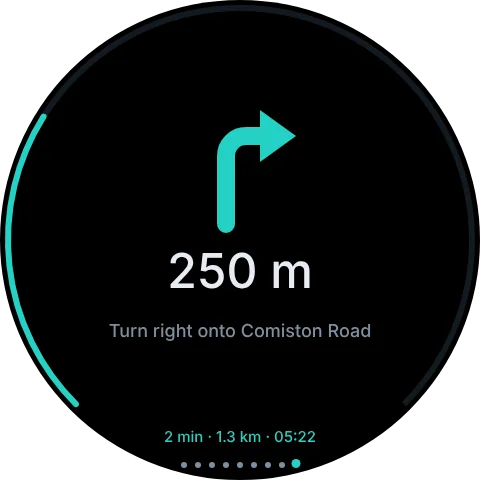
- The arrow is Maps’ own, in your theme’s needle colour.
- The distance is what Maps shows, so it’s already in your units.
- The instruction is up to two lines, with the arrival time round the bottom of the glass.
- Rerouting and arrived are shown too.
On the gauge
- PAGE
A Nav page
Add it like any other page and swipe to it when you want it.
- POP-UP
Turns come to you
Or leave boost on screen: the gauge jumps to the Nav page as a turn gets close, 300 m by default, then goes back after it.
- SETTINGS
In the web UI
Nav link on or off, the pop-up and its distance, how long before it returns, and the arrow colour (follow the theme, or your own).
- LINK
Reconnects by itself
The app remembers your gauge and reconnects whenever the ignition comes on. If the phone goes quiet for 30 seconds, the Nav page drops out of navigation by itself.
Setting it up
- Install can2gauge LinkOn an Android phone (Android 8.0 or later).
- Give it notification accessSo it can see Google Maps’ navigation notification. Then allow Bluetooth.
- Set battery to UnrestrictedSo Android doesn’t put the app to sleep mid-route.
- Switch the gauge onThe app goes from Searching to Connected. Send test turn shows a right arrow and “250 m” on the glass.
- Start a route in Google MapsThe turns follow.
Good to know
Android only. iOS doesn’t let one app read another app’s notifications, so the iPhone can’t pass Maps’ turns on.
The notification is Google’s. If a Maps update changes its layout, the app has a raw view of the last notification so the reading can be fixed quickly.
Arrival and rerouting are recognised from Maps’ English wording for now. The distance and the arrow work in any language.
Eyes on the road. The Nav page is a glance, not a screen to study. Set the gauge up while parked.
Questions
Does it work with Android Auto?
Yes. The app reads Maps’ notification on the phone, which carries on while Android Auto shows the map on the head unit. The gauge shows the next turn alongside it.
Does it work with Waze or Apple Maps?
Not at the moment. The app reads Google Maps’ navigation notification only, and Apple Maps runs on iPhone, which doesn’t allow this.
Does it use my mobile data or drain the battery?
It sends a few small Bluetooth LE messages: when the turn changes and every ten seconds while you navigate. Maps itself is what uses data and battery, as it would anyway.